The workflows index
The Workflows page: health strip, folders, markdown notes on every workflow, the amber needs-setup cue that lists what is missing, and Fix with Max.
The Workflows page is where a workspace lives between edits: every workflow, its status, its recent runs, and the folders you sort them into. Two things on it are easy to miss and worth knowing: notes and the needs-setup cue.
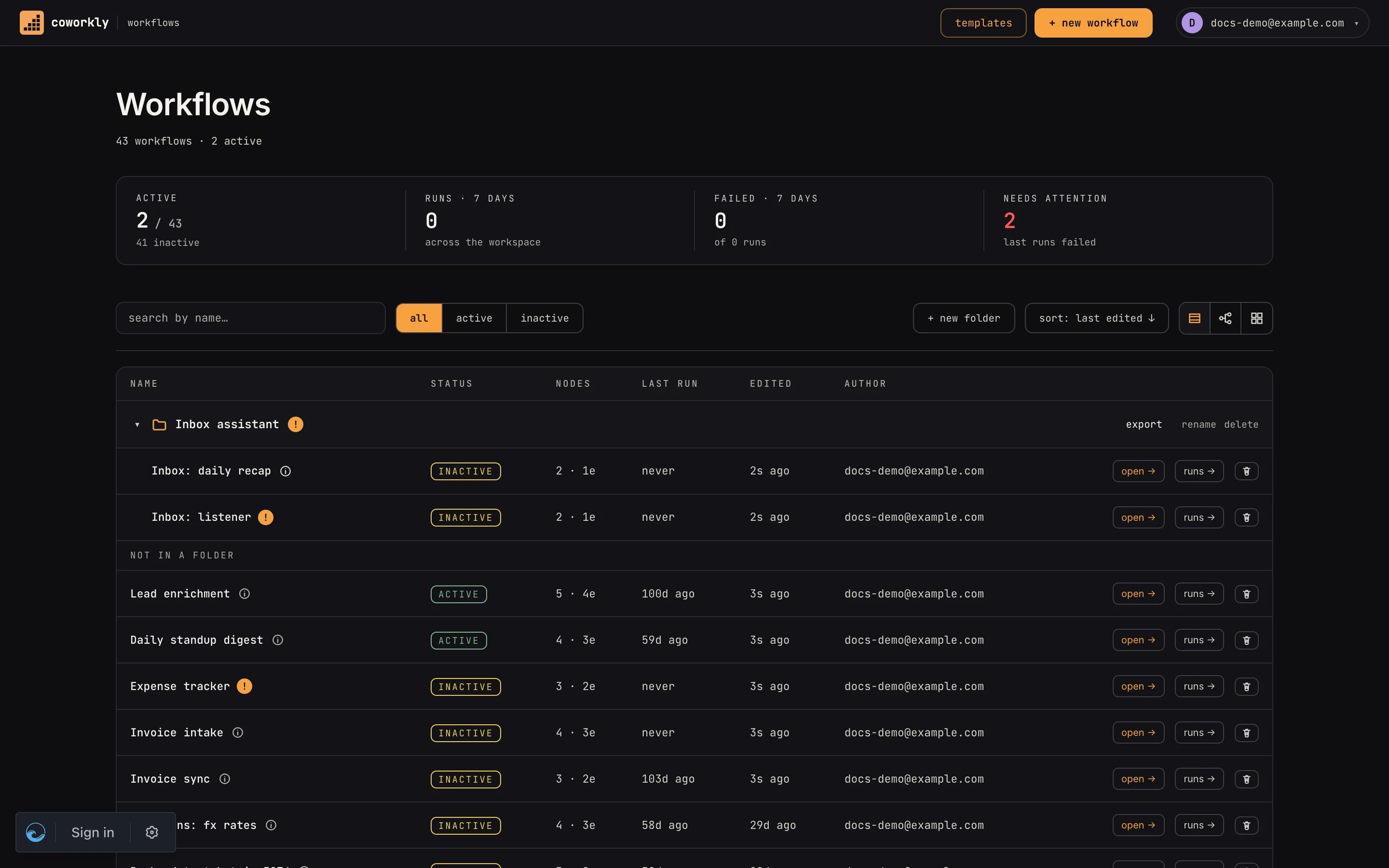 A folder and its workflows. The
i opens notes; the amber ! means something still has to be configured.
Notes
Every workflow and every folder has a notes field. Click the small
i next to the name to read it; edit notes opens the editor,
⌘⏎ (Ctrl+Enter) saves, Esc closes. Notes are markdown (headings,
bold, lists and links render in the modal), up to 10,000 characters,
and show up nowhere else: they are for the next person who opens the
list, saying what the workflow does, what it expects, who owns it.
- Workflow notes are the right place for "what this does and why". On a card they show as a short excerpt under the name.
- Folder notes describe how the workflows inside fit together: which one is the entry point, which ones it calls, in what order. Multi-workflow templates installed from the template store arrive with both filled in.
The i is always there. It is dim when there are no notes yet and
brighter once something is written.
The needs-setup cue
When a workflow still can't run as installed, the i becomes an amber
!. Hover it for the count ("3 items to configure"); click it and the
notes modal adds a needs setup panel listing exactly what is
missing, one row each, with a one-line hint:
| kind | what it means |
|---|---|
| connection | a step uses an app (Gmail, Slack, GitHub…) and no connection is bound yet |
| input | a required field in a step is still blank |
| store | a step reads or writes a data store that doesn't exist in this workspace yet |
| link | a sub-workflow call points at nothing, or at a workflow that isn't here |
The list is derived from the steps themselves, never hand-written, so
it stays true as you fix things: bind the connection on the canvas,
come back, and the ! is an i again. Templates can ship
their own hint per item ("Connect the workspace Slack app the bot
replies as") in place of the generic one.
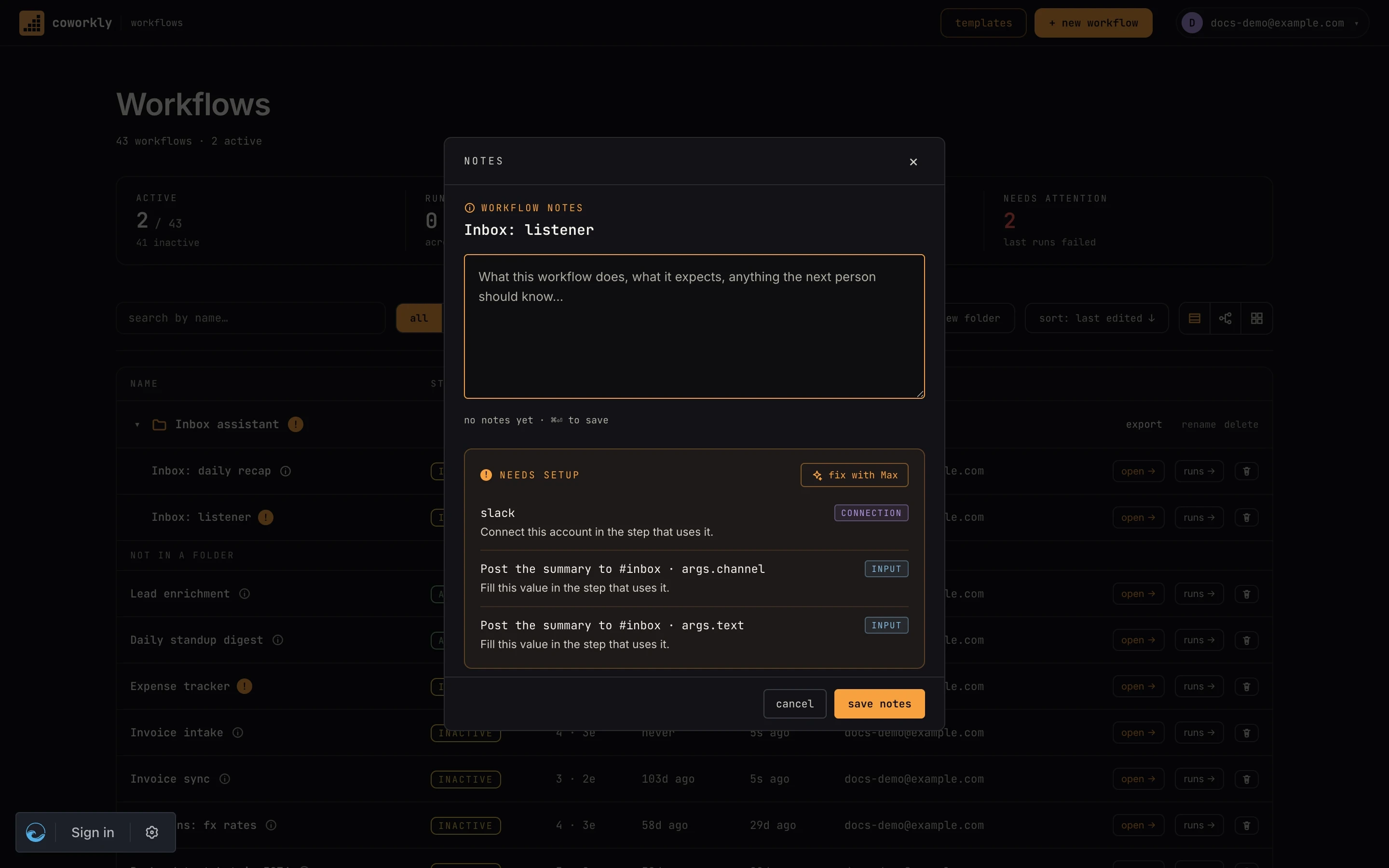 One row per item, with its kind and a hint. Fix with Max opens the canvas with these prefilled in the chat.
A folder shows the ! when any workflow inside it (sub-folders
included) needs setup. Its panel lists every member with ! or ✓;
click a name to jump straight into that workflow's notes.
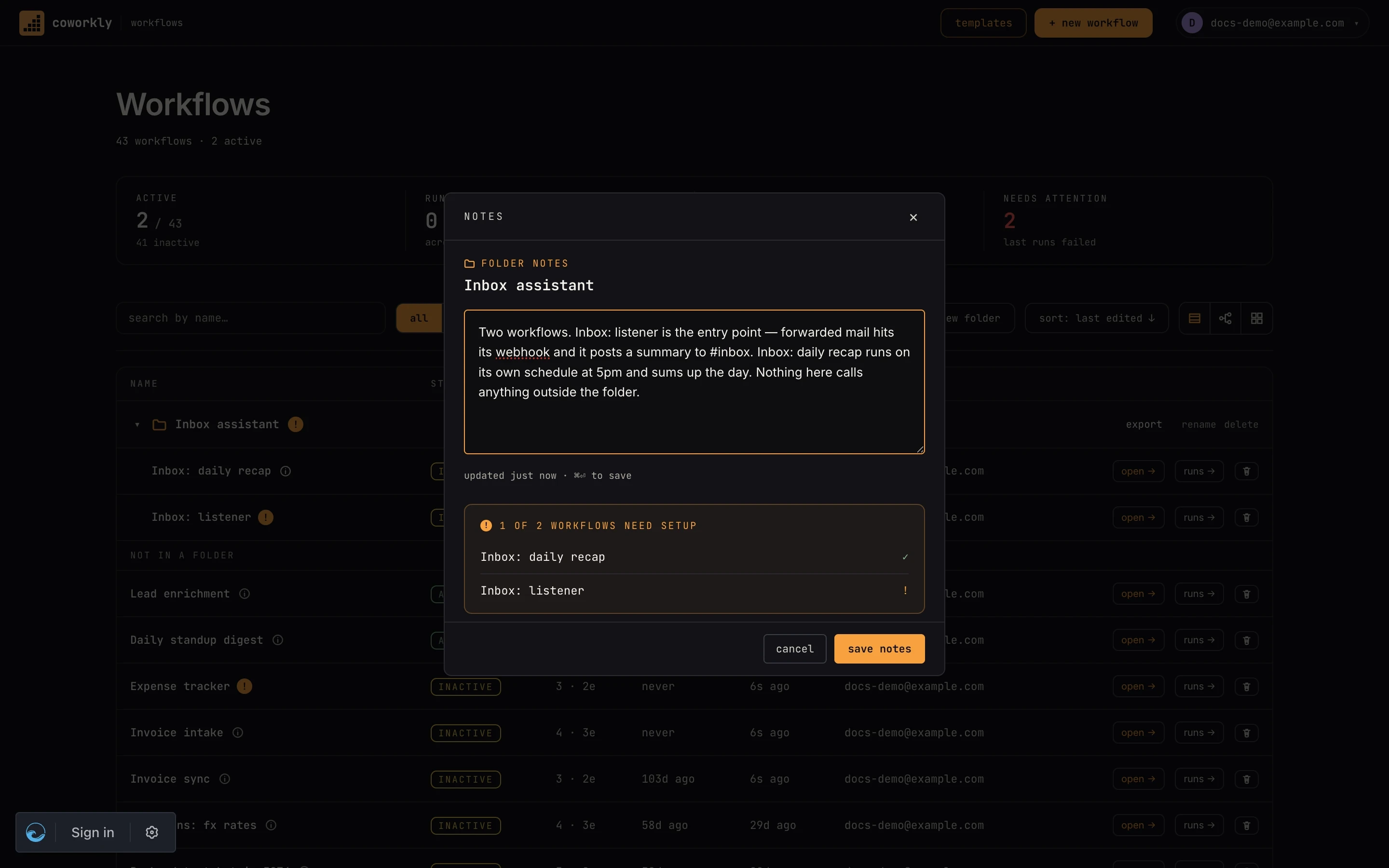 Folder notes describe the sequence; the member list shows who still needs attention.
Fix with Max
The needs-setup panel has one button: fix with Max. It opens the workflow and sends Max the list straight away ("Help me finish setting up this workflow. Still needed: connection: slack; input: Post · channel…"), so Max starts on it as the canvas loads. Max then walks the items with you on the canvas: picking a connection, filling the field, creating the store, pointing the call at the right workflow. See the chat for how that conversation works.
Folders
Drag a workflow onto a folder to file it; drag a folder header to
reorder folders; one level of sub-folders is allowed. Collapse a
folder with the chevron. A collapsed folder still shows its ! when
something inside needs attention. Folders carry across export and
import: a folder export is a zip of its workflows plus the folder's
notes.
Bundles
A bundle looks like a folder with a box icon, and it does one more thing: its workflows share their accounts. For why both exist and when to use which, see Bundles and folders. You pick one account per app (one Slack, one GitHub) in the bundle's settings, and every workflow inside uses it, including ones you move in later.
- Where they come from. Installing a multi-workflow template from
the store creates a bundle. You can also make one with
+ new bundle, at the top level or inside a folder. - Picking accounts. Open the bundle's
iand its connections tab. Each app its workflows use has a row: pick an account,connectone if the workspace has none, or+ add connectionfor an app nothing uses yet. If the workspace has exactly one account for an app, it is picked for you. After a change, a toast says how many steps it set, with an undo. - What changes. Only steps with no account yet, and steps that got their account from the bundle. A step where someone picked an account by hand is never overwritten. Active workflows take the new account straight away; other unpublished edits stay as drafts.
- Moving in and out. Drag a workflow onto a bundle to move it in; its empty steps take the bundle's accounts. Drag it out and it keeps the accounts it has.
- Accounts that go away. If a bundle's account is deleted, or made private while a teammate's workflow is in the bundle, the bundle switches to the one other account it can use, or asks you to pick.
- Turning it back into a folder keeps every workflow and account. Deleting a bundle keeps its workflows too, unless you tick the box to delete them as well.
Publishing a multi-workflow template to the store is done from a
bundle's ⋯ menu.
Over the API
Bundles have their own routes under /api/v1/bundles (settings, set
an app's account, apply, turn back into a folder, delete) and MCP
tools (list_bundles, set_bundle_connection, and the rest); move a
workflow in with PATCH /api/v1/workflows/:id/move and a bundle_id.
Notes are plain attributes: PATCH /api/v1/workflows/:id with
notes, and PATCH /api/v1/folders/:id/notes for a folder. Both
stamp notes_updated_at only when the text actually changes. The MCP
workflows resource lists notes alongside each workflow's name and
id. Full reference: REST API.
Where to go next
- Getting started: the index at a glance
- Import & export: templates, and what travels with a folder
- Managing connections: the most common needs-setup item